Welcome to Excel Avon
Insert Border in Excel using VBA
DOWNLOAD USED EXCEL FILE FROM HERE>>
Today’s article is about Insert border in excel using VBA, today we are going to understand how to Insert border in excel using VBA, Borders are a necessary part of every worksheet or in any word file. Borders separate data from one another. Also, it looks good to have borders in our datasheet. Borders are a property in VBA that we can access using the Range method and giving the appropriate border style as we know there are different border styles.
In excel worksheet we have options for insert borders manually, but how we do it in VBA is what we will learn in this article.
How to Insert Border in Excel using VBA
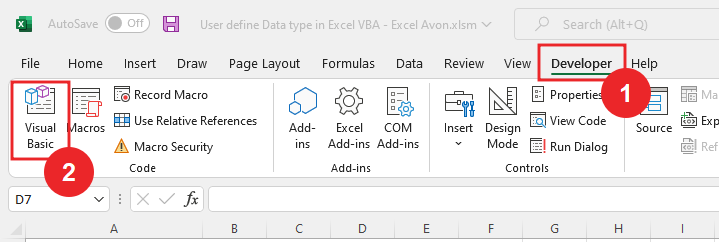
Through this post, we will know how to Insert border in excel worksheet with the help of VBA, then we have to go like last time, first go to the Developer Tab, then click on the option of Visual Basic as shown in the image below. Is.
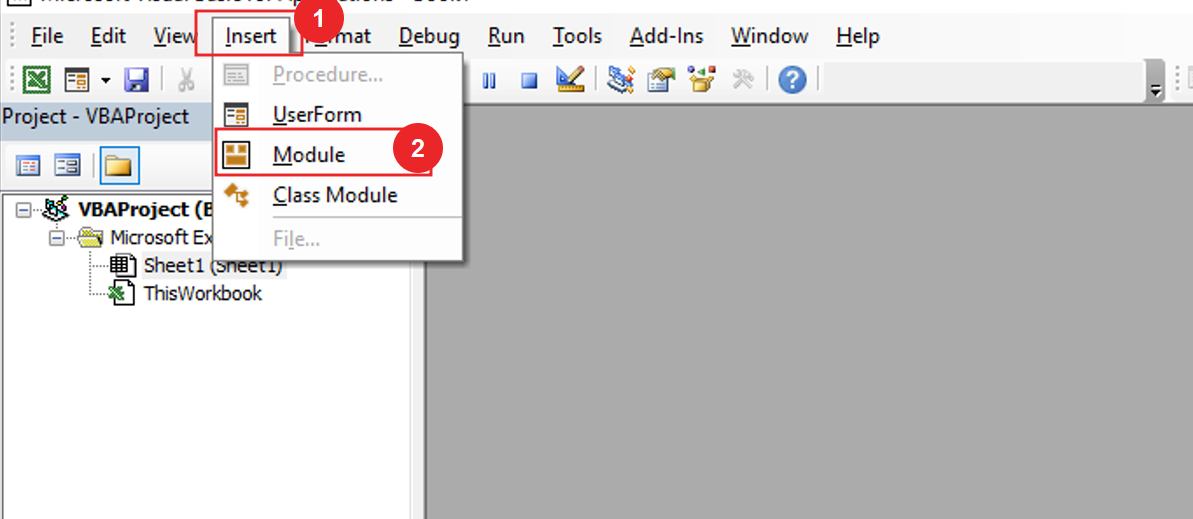
On opening in VBE, you have to go to Insert and then Module has to be inserted, as can be seen in the image.
Once we insert the module, we will write a subroutine as InsertBorder.
Sub InsertBorder()

End Sub
And now we will define variables for worksheet, Range, Border Width, Line Style.
Sub InsertBorder()
Dim WS As Worksheet
Dim Rng as Range
Dim bWidth As XlBorderWeight
Dim lStyle As XlLineStyle

End Sub
And now we’ll set up the worksheet.
Sub InsertBorder()
Dim WS As Worksheet
Dim Rng as Range
Dim bWidth As XlBorderWeight
Dim lStyle As XlLineStyle

Set WS = Activesheet
End Sub
Now we will set the range where we want to Insert border, Range that is from B2 to D14
Sub InsertBorder()
Dim WS As Worksheet
Dim Rng As Range
Dim bWidth As XlBorderWeight
Dim lStyle As XlLineStyle

Set WS = ActiveSheet
Set Rng = WS.Range("B2:D14")

End Sub
Here we are using ‘with Rng‘ to avoid writing the range again and again.
Sub InsertBorder()
Dim WS As Worksheet
Dim Rng As Range
Dim bWidth As XlBorderWeight
Dim lStyle As XlLineStyle

Set WS = ActiveSheet
Set Rng = WS.Range("B2:D14")
With Rng
End With
End Sub
Now we will insert the bottom Side border, with bottom border we will select the color of the border.
Sub InsertBorder()
Dim WS As Worksheet
Dim Rng As Range
Dim bWidth As XlBorderWeight
Dim lStyle As XlLineStyle

Set WS = ActiveSheet
Set Rng = WS.Range("B2:D14")
With Rng
      With.Borders(xlEdgeBottom)
          .Color=RGB (100,100,210)
      End with
End With
End Sub
Now we will store line style ‘xlcontinuous‘, Along with this, we will also store the insert border width
Sub InsertBorder()
Dim WS As Worksheet
Dim Rng As Range
Dim bWidth As XlBorderWeight
Dim lStyle As XlLineStyle

Set WS = ActiveSheet
Set Rng = WS.Range("B2:D14")
With Rng
      lStyle = xlContinuous
      bWidth = xlThin
    With.Borders(xlEdgeBottom)
      . Color = RGB (100,100,210)
      . LineStyle = lStyle
      . Weight = bWidth
    End with
End With
End Sub
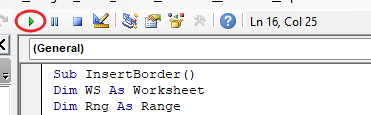
After writing the code, we will run the code
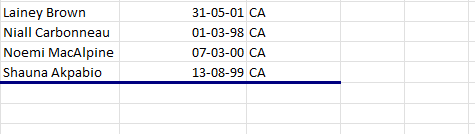
Now you can see in the worksheet as the bottom side border inserted in the data is of blue color.

Now we will change the bottom border color once by changing the color value of rgb function
Sub InsertBorder()
Dim WS As Worksheet
Dim Rng As Range
Dim bWidth As XlBorderWeight
Dim lStyle As XlLineStyle

Set WS = ActiveSheet
Set Rng = WS.Range("B2:D14")

With Rng
     lStyle = xlContinuous
     bWidth = xlThin
     With. Borders(xlEdgeBottom)
     . Color = RGB (0, 255, 0)
     .LineStyle = lStyle
     .Weight = bWidth
      End With
End With
End Sub
after clicking the run button, now you can see that the border column has changed

Now we can use color index color for border color with this we will change border width.
Sub InsertBorder()
Dim WS As Worksheet
Dim Rng As Range
Dim bWidth As XlBorderWeight
Dim lStyle As XlLineStyle

Set WS = ActiveSheet
Set Rng = WS.Range("B2:D14")

With Rng
     lStyle = xlContinuous
     bWidth = xlThick
     With .Borders(xlEdgeBottom)
         .ColorIndex = 25
         .LineStyle = lStyle
         . Weight = bWidth
     End With
End With
End Sub
When we run the code, we get the bottom border inserted like this
Now we will copy the code made for the bottom and paste it below where we will make a border for the top.
Sub InsertBorder()
Dim WS As Worksheet
Dim Rng As Range
Dim bWidth As XlBorderWeight
Dim lStyle As XlLineStyle

Set WS = ActiveSheet
Set Rng = WS.Range("B2:D14")

With Rng
      lStyle = xlContinuous
      bWidth = xlThick
      With .Borders(xlEdgeBottom)
     .ColorIndex = 25
     .LineStyle = lStyle
     .Weight = bWidth
End With

lStyle = xlContinuous
bWidth = xlThick
With .Borders(xlEdgeTop)
      . Color Index = 25
      . LineStyle = lStyle
      . Weight = bWidth
    End With
End With
End Sub
After writing the code we will run the code then we will see in the worksheet here and bottom border is inserted
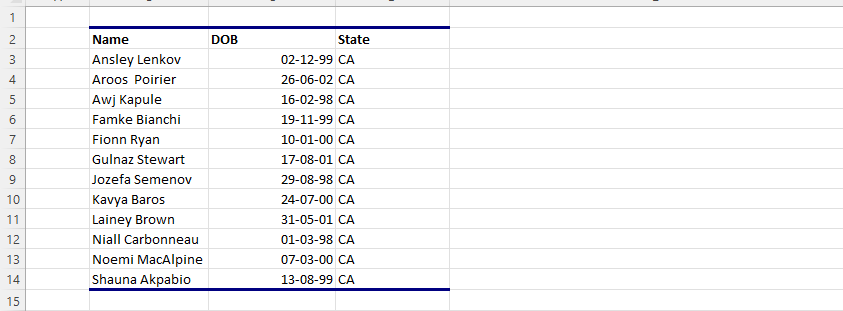
After this we will again copy and paste the code, and this time we will edit the code for left border.
Sub InsertBorder()
Dim WS As Worksheet
Dim Rng As Range
Dim bWidth As XlBorderWeight
Dim lStyle As XlLineStyle

Set WS = ActiveSheet
Set Rng = WS.Range("B2:D14")

With Rng
     lStyle = xlContinuous
     bWidth = xlThick
     With .Borders(xlEdgeBottom)
          .ColorIndex = 25
          .LineStyle = lStyle
          .Weight = bWidth
     End With

     lStyle = xlContinuous
     bWidth = xlThick
     With .Borders(xlEdgeTop)
          .ColorIndex = 25
          .LineStyle = lStyle
          .Weight = bWidth
     End With
     lStyle = xlDouble
     bWidth = xlMedium
     With .Borders(xlEdgeLeft)
          .ColorIndex = 13
          .LineStyle = lStyle
          .Weight = bWidth
     End With
End With
End Sub
Run the code then goes to the worksheet and then we have inserted a new border on the left side of the data and its color is different from the other border because we have changed the color index
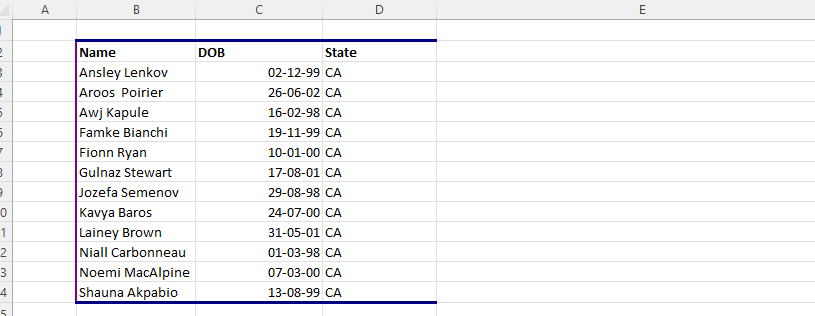
Once again, we will change the Line style of the left side insert border. The code you are changing is in bold
Sub InsertBorder()
Dim WS As Worksheet
Dim Rng As Range
Dim bWidth As XlBorderWeight 'Variable for Border Width
Dim lStyle As XlLineStyle 'Variable for Border Line Style

Set WS = ActiveSheet
Set Rng = WS.Range("B2:D14")

With Rng
     lStyle = xlContinuous
     bWidth = xlThick
     With .Borders(xlEdgeBottom)
           .ColorIndex = 25
           .LineStyle = lStyle
           .Weight = bWidth
     End With

     lStyle = xlContinuous
     bWidth = xlThick
     With .Borders(xlEdgeBottom)
          .ColorIndex = 25
          .LineStyle = lStyle
          .Weight = bWidth
     End With

     lStyle = xlDashDot
     bWidth = xlMedium
     With .Borders(xlEdgeLeft)
         .ColorIndex = 13
         .LineStyle = lStyle
         .Weight = bWidth
     End With
End With
End Sub
Run the code then go to the worksheet and then we have the line style dash dot on the left side of the data.
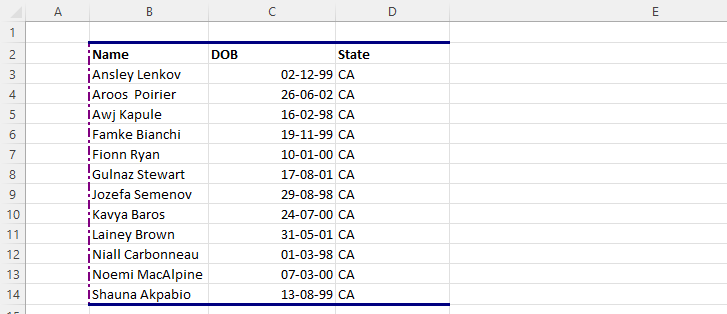
After this we will again copy and paste the code, and this time we will edit the code for Right border. The code you are changing is in bold
Sub InsertBorder()
Dim WS As Worksheet
Dim Rng As Range
Dim bWidth As XlBorderWeight
Dim lStyle As XlLineStyle

Set WS = ActiveSheet
Set Rng = WS.Range("B2:D14")

With Rng
     lStyle = xlContinuous
     bWidth = xlThick
     With .Borders(xlEdgeBottom)
          .ColorIndex = 25
          .LineStyle = lStyle
          .Weight = bWidth
     End Wit
     lStyle = xlContinuous
     bWidth = xlThick
     With .Borders(xlEdgeTop)
          .ColorIndex = 25
          .LineStyle = lStyle
          .Weight = bWidth
     End With

     lStyle = xlDashDot
     bWidth = xlMedium
     With .Borders(xlEdgeLeft)
          .ColorIndex = 13
          .LineStyle = lStyle
          .Weight = bWidth
     End With

     lStyle = xlDashDot
     bWidth = xlMedium
     With .Borders(xlEdgeRight)
          .ColorIndex = 5
          .LineStyle = lStyle
          .Weight = bWidth
     End With
End With
End Sub
Run the code then go to the worksheet and then we have the line style dash dot with blue border on the Right side of the data.
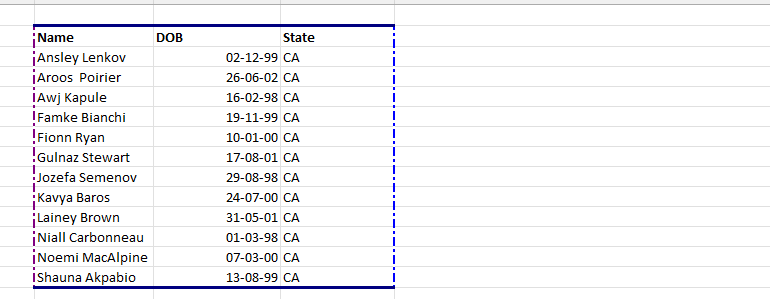
Now we are writing only the code of insert border types horizontal and vertical to show you, all the other codes are written together but we will not show you, you can see the right-side border above.
Sub InsertBorder()
Dim WS As Worksheet
Dim Rng As Range
Dim bWidth As XlBorderWeight
Dim lStyle As XlLineStyle

Set WS = ActiveSheet
Set Rng = WS.Range("B2:D14")

With Rng
     lStyle = xlContinuous
     bWidth = xlThick
     With .Borders(xlInsideHorizontal)
          .ColorIndex = 9
          .LineStyle = lStyle
          .Weight = bWidth
     End With

     lStyle = xlDashDot
     bWidth = xlThin
     With .Borders(xlInsideVertical)
          .ColorIndex = 7
          .LineStyle = lStyle
          .Weight = bWidth
     End With
End With
End Sub
Run the code then go to the worksheet, now you can see that the Insert border of horizontal and vertical types has been inserted inside the data.
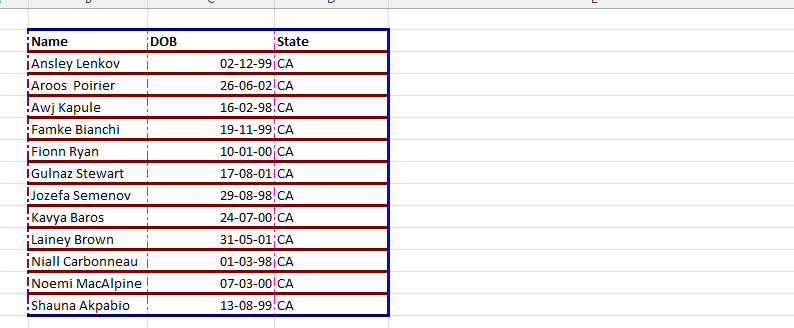
You can use vbcolor function instead of color index, now let us show you using vbcolor.
Sub InsertBorder()
Dim WS As Worksheet
Dim Rng As Range
Dim bWidth As XlBorderWeight
Dim lStyle As XlLineStyle
Set WS = ActiveSheet
Set Rng = WS.Range("B2:D14")

With Rng
     lStyle = xlContinuous
     bWidth = xlThick
     With .Borders(xlInsideHorizontal)
          .ColorIndex = 9
          .LineStyle = lStyle
          .Weight = bWidth
     End With

     lStyle = xlDashDot
     bWidth = xlThick
     With .Borders(xlInsideVertical)
          .Color = VbRed
          .LineStyle = lStyle
          .Weight = bWidth
     End With
End With
End Sub
Run the code then go to the worksheet, now you can see that the Insert border of vertical types of color changed.
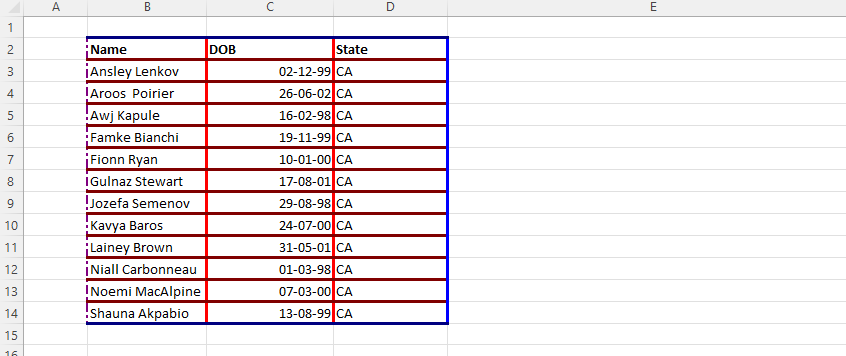
Now we will create the code to remove the insert border, we will write a subroutine as RemoveBorder.
Sub RemoveBorder()

End Sub
And now we will define variables for worksheet, Range. and set the worksheet as Activesheet.
Sub RemoveBorder()
Dim WS As Worksheet
Dim Rng As Range

Set WS = ActiveSheet
End Sub
Now we will add the range of data
Sub RemoveBorder()
Dim WS As Worksheet
Dim Rng As Range

Set WS = ActiveSheet
Set Rng = WS.Range("B2:D14")
End Sub
Here we are using ‘with Rng‘ to avoid writing the range again and again. Now first you have to select border then you will do xlnone in line style.
Sub RemoveBorder()
Dim WS As Worksheet
Dim Rng As Range

Set WS = ActiveSheet
Set Rng = WS.Range("B2:D14")

With Rng
     .Borders(xlEdgeBottom).LineStyle = xlNone
End With
End Sub
Similarly, now we will copy and paste it and then change all the border then line style none
Sub RemoveBorder()
Dim WS As Worksheet
Dim Rng As Range

Set WS = ActiveSheet
Set Rng = WS.Range("B2:D14")

With Rng
     .Borders(xlEdgeBottom).LineStyle = xlNone
     .Borders(xlEdgeTop).LineStyle = xlNone
     .Borders(xlEdgeLeft).LineStyle = xlNone
     .Borders(xlEdgeRight).LineStyle = xlNone
     .Borders(xlInsideHorizontal).LineStyle = xlNone
     .Borders(xlInsideVertical).LineStyle = xlNone
End With
End Sub
And then we will run the code you can see all the Insert borders are removed
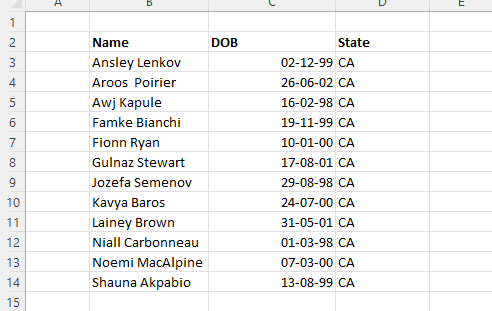
Now we will insert button which will run both Insert border and remove border. go to insert option will drag button select macro then rename button ready to work.
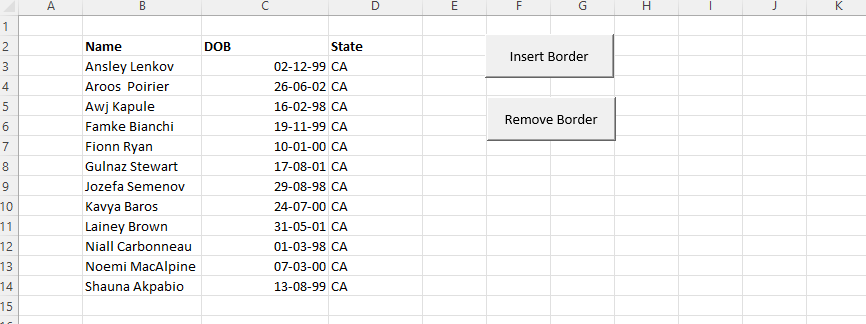
Now we will click on the insert button and see that the border has been inserted in our data.
So, I hope you have understood How to Insert Border in Excel using VBA and for more information, you can follow us on Twitter, Instagram, LinkedIn, and YouTube as well.
DOWNLOAD USED EXCEL FILE FROM HERE>>
You can also see well-explained video here about How to Insert Border in Excel using VBA